Transforming your AI-generated videos into production-ready assets is a streamlined 7-step process. Follow this guide to create your first sprite sheet.
This guide is for game developers, pixel artists, and anyone who wants to turn character animations from AI video tools (e.g. Runway, Pika, Kling) into clean, loopable sprite sheets for engines like GDevelop, Unity, Godot, or GameMaker. You'll learn the full workflow from upload to export, plus troubleshooting and best practices so your sprites look sharp and animate smoothly in-game.
No account or payment is required. All processing runs in your browser—your video never leaves your device.
Overview
Sprite Smithy runs entirely in your browser. You upload a video, define a loop, extract frames, remove the background, normalize size, clean edges, and export. No account required—your files never leave your device.
The tool is built for the way AI video generators work: short clips (often a few seconds), single characters on a solid or green-screen background. By the end of the pipeline you have a sprite sheet (one image with all frames in a grid), optional individual PNGs, and a metadata JSON file that records dimensions and frame count for easy import into your game engine or animation system.
Each step is shown in the left sidebar of the tool. You can move forward and back between steps; your work is kept in memory until you refresh or close the tab. The right panel shows a live preview of your frames so you can spot issues early.
Start at the Sprite Smithy home page, then open the tool to begin.
Before You Start
For the smoothest experience, use a video that meets these guidelines: MP4, WebM, or MOV format; under 100MB file size; and ideally under 10 seconds so frame extraction stays fast. If your AI tool can export with a solid green or blue background, use that—it makes background removal in Step 4 much cleaner than trying to key out complex or noisy backgrounds.
Sprite Smithy works best in modern Chrome, Firefox, or Edge. All processing is done locally with the Canvas API; no video is sent to any server, so your assets stay private.
The 7-Step Process
1. Upload Your Video
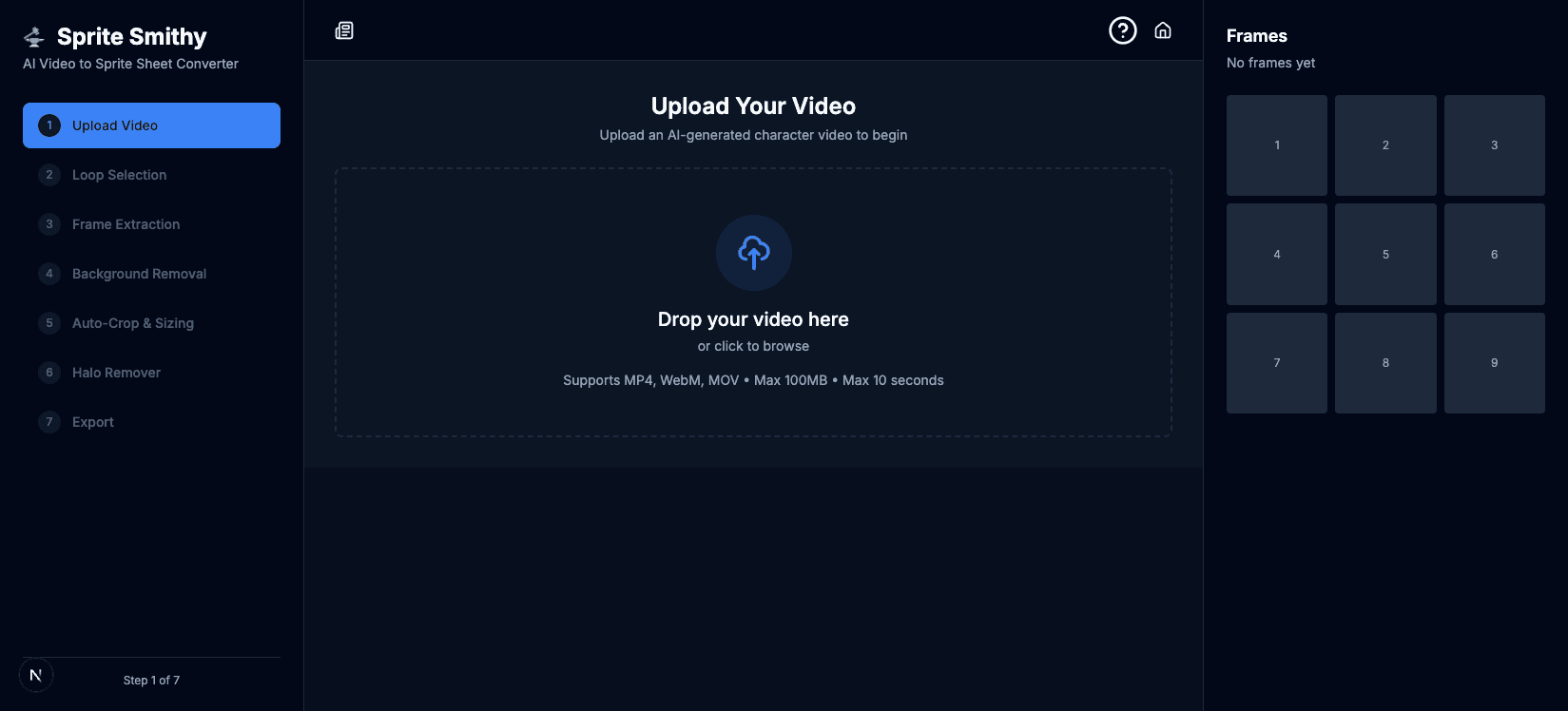
Start by dragging and dropping your character video into the tool. We support MP4, WebM, and MOV files up to 100MB. You can also click the upload area to open a file picker. Once the file is loaded, the tool reads its duration, frame rate, and dimensions and shows a short preview so you can confirm it's the right clip before moving on.
Drag and drop or click to browse. With ?guide=1 you can load the sample video for this guide.
2. Define the Loop
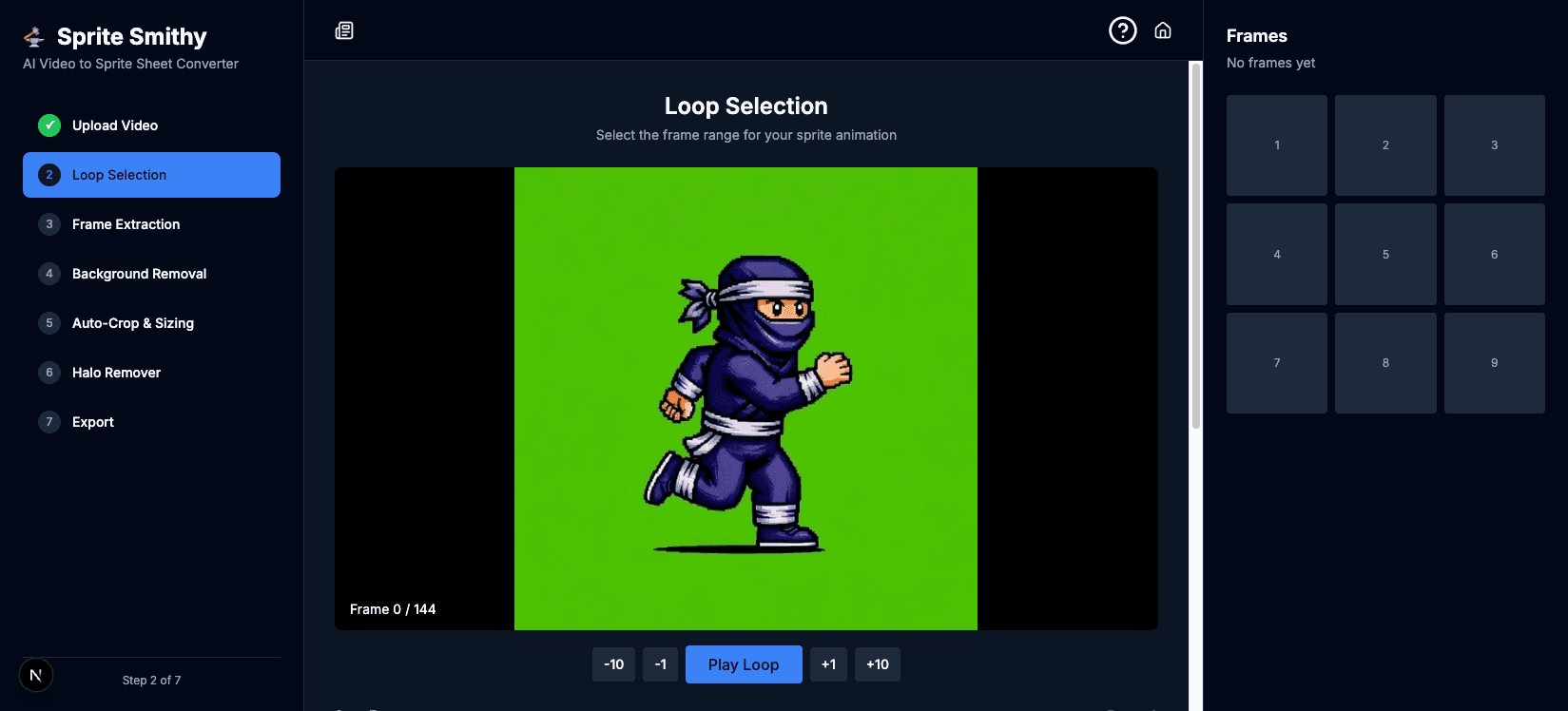
Use the timeline to scrub through your video. Select the exact start and end frames to ensure your animation cycle (like a walk or idle) is perfectly seamless. The tool shows the current frame number and total frames; use the -1 / +1 and -10 / +10 buttons to nudge the range, and Play Loop to preview how the loop will look. You can also set a frame skip (e.g. every 2nd frame) to reduce the number of exported frames and get a snappier animation if your source has a high frame rate.
Scrub the timeline and set start/end frames for a seamless loop.
3. Extract Frames
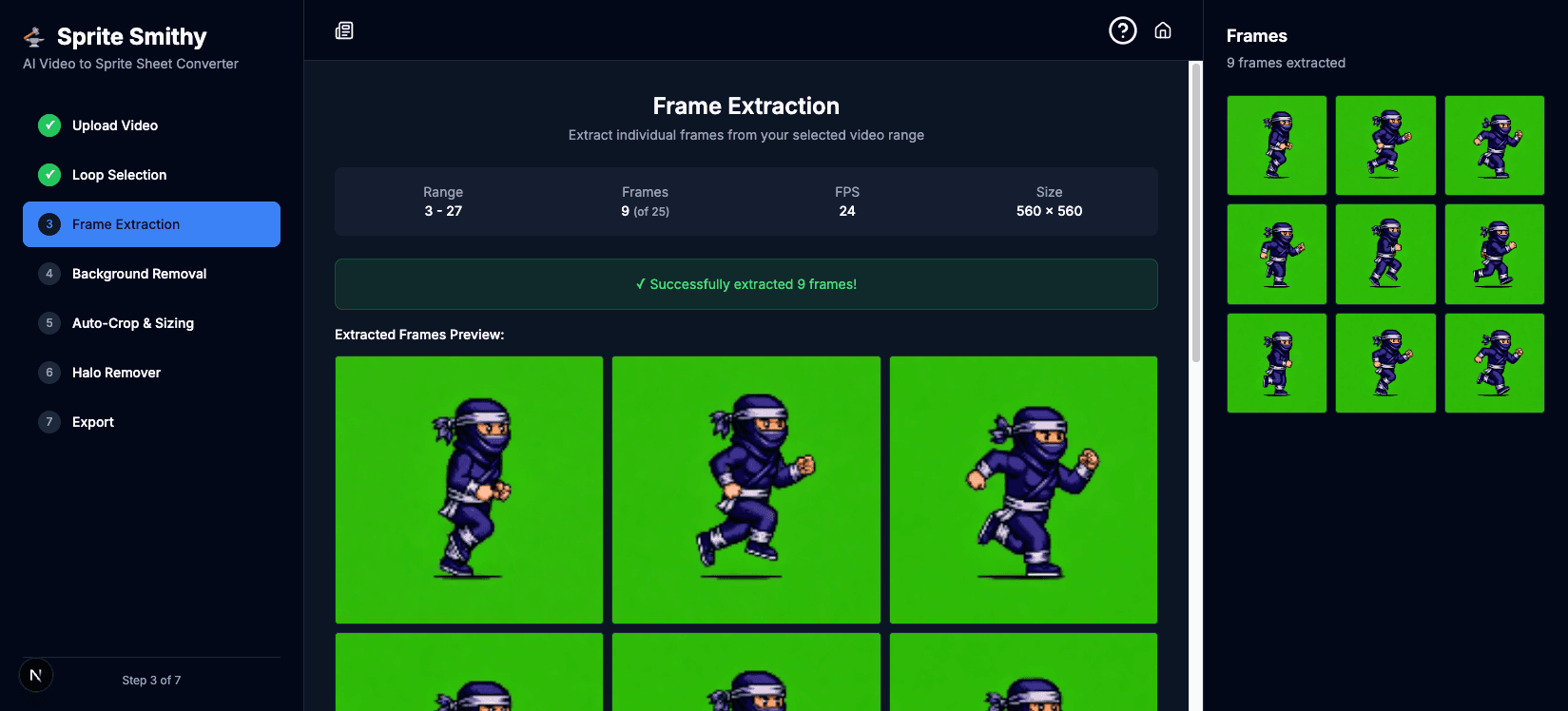
Click the extraction button. Our system uses the Canvas API to pull individual high-quality frames from your video. Extraction runs entirely in the browser—no upload to a server—and a progress indicator shows how many frames have been processed. When it's done, you'll see a grid of thumbnails in the right panel and a summary (frame count, size). If the count or range looks wrong, go back to Step 2 and adjust the loop or frame skip before re-extracting.
Extract individual frames from your selected range.
4. Remove Background
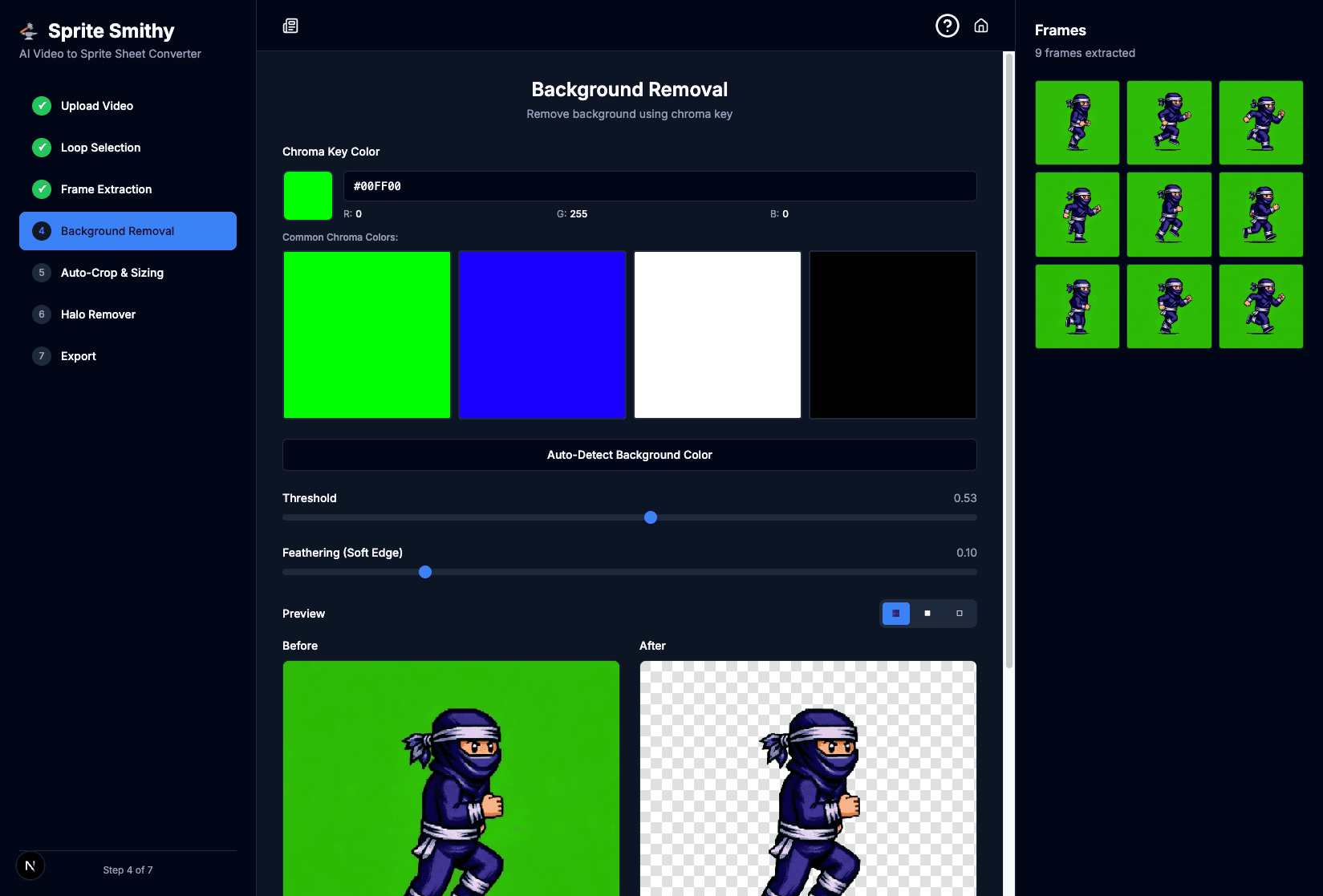
Select your background color using the Chroma Key tool. Click the color swatch or use the hex field to match your video's background (e.g. bright green #00FF00); there are also quick presets for common green, blue, white, and black. Adjust the Threshold slider until the background disappears completely without cutting into your character. Use the Before/After preview to compare; a small amount of Feathering can soften the edge between character and transparency. If the background isn't a solid color, chroma keying will be less effective—when possible, re-export from your AI tool with a solid backdrop.
Chroma key color picker and threshold for clean transparency.
5. Auto-Crop & Normalize
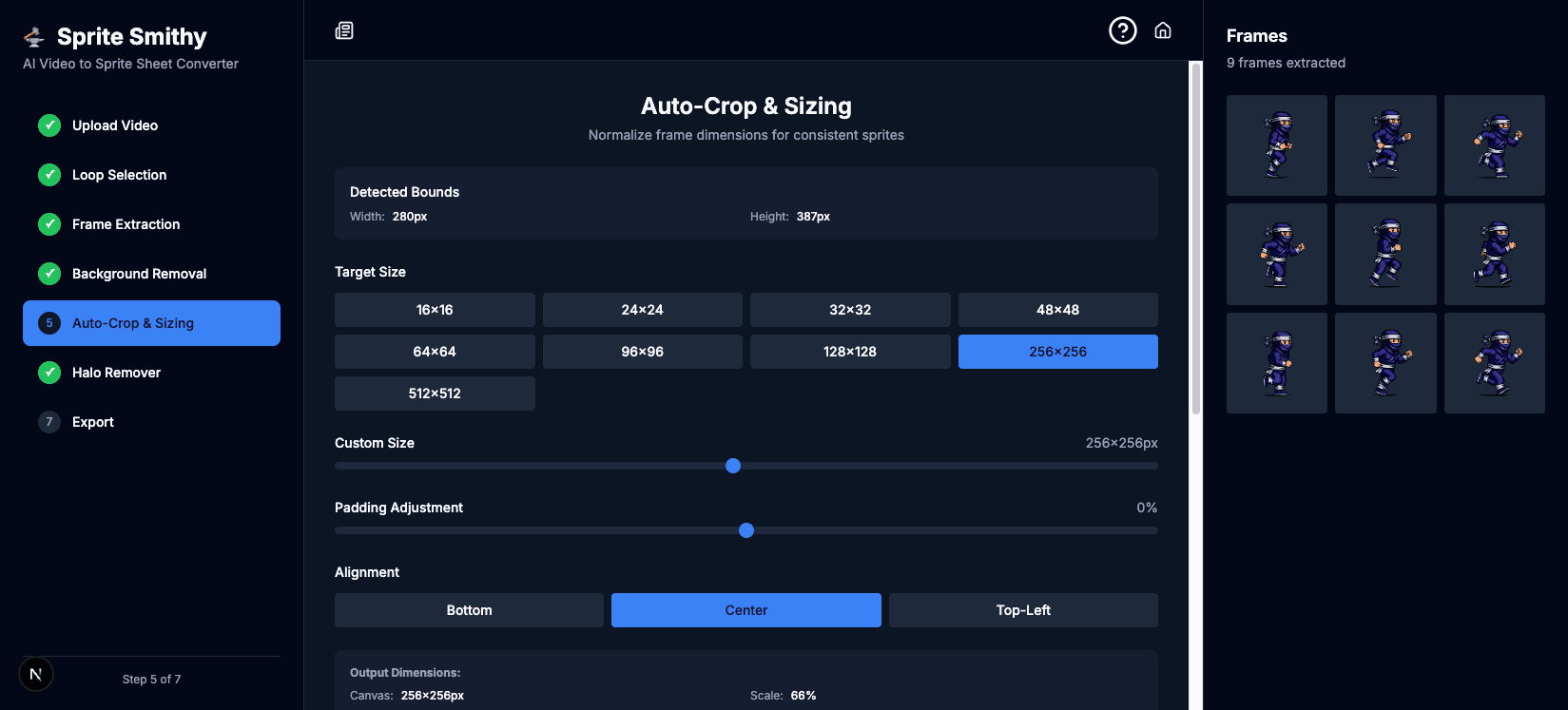
Let the tool automatically detect the character's bounding box. This ensures every frame is centered and the same size, preventing "jitter" in your game engine. You can choose a target size (e.g. 256×256 or 128×128) from presets or use a custom value; the tool scales and centers each frame within that canvas. Padding and alignment options let you fine-tune where the character sits in the frame. Consistent dimensions across all frames are essential for sprite sheets—without this step, small shifts in the AI output can make the animation bounce or drift on screen.
Consistent bounding box and size across all frames.
6. Clean Up Edges
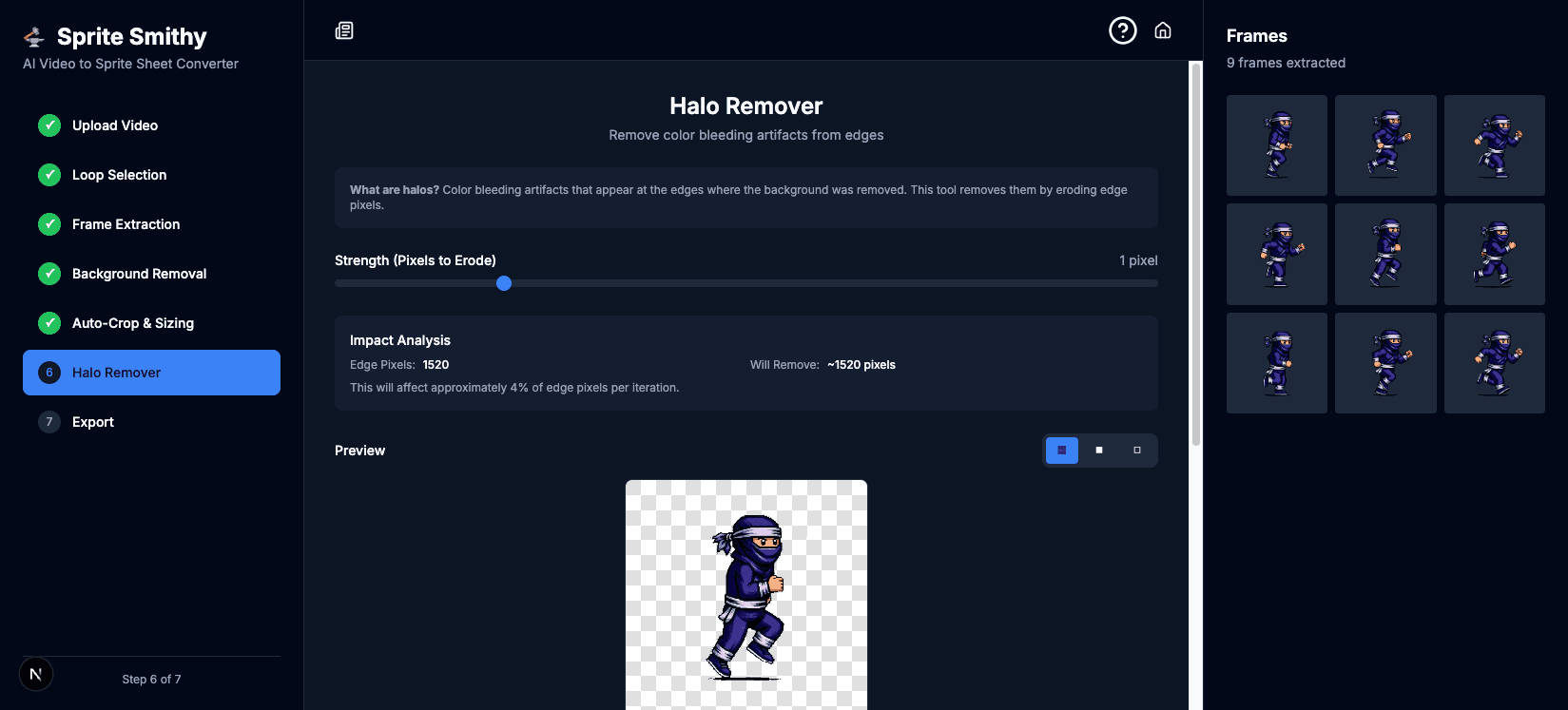
Apply the Halo Removal post-processing to eliminate any leftover AI artifacts or color bleeding around the edges of your sprite. Many AI videos leave a faint outline or "halo" where the background was removed. The Halo Remover erodes a small number of edge pixels (you control the strength in pixels) to trim that away. Use the preview and impact analysis to see how much will be removed; start with a low value and increase if edges still look soft. You can skip this step if your chroma key result already looks clean.
Remove AI halo and soften edges for game-ready sprites.
7. Export Your Assets
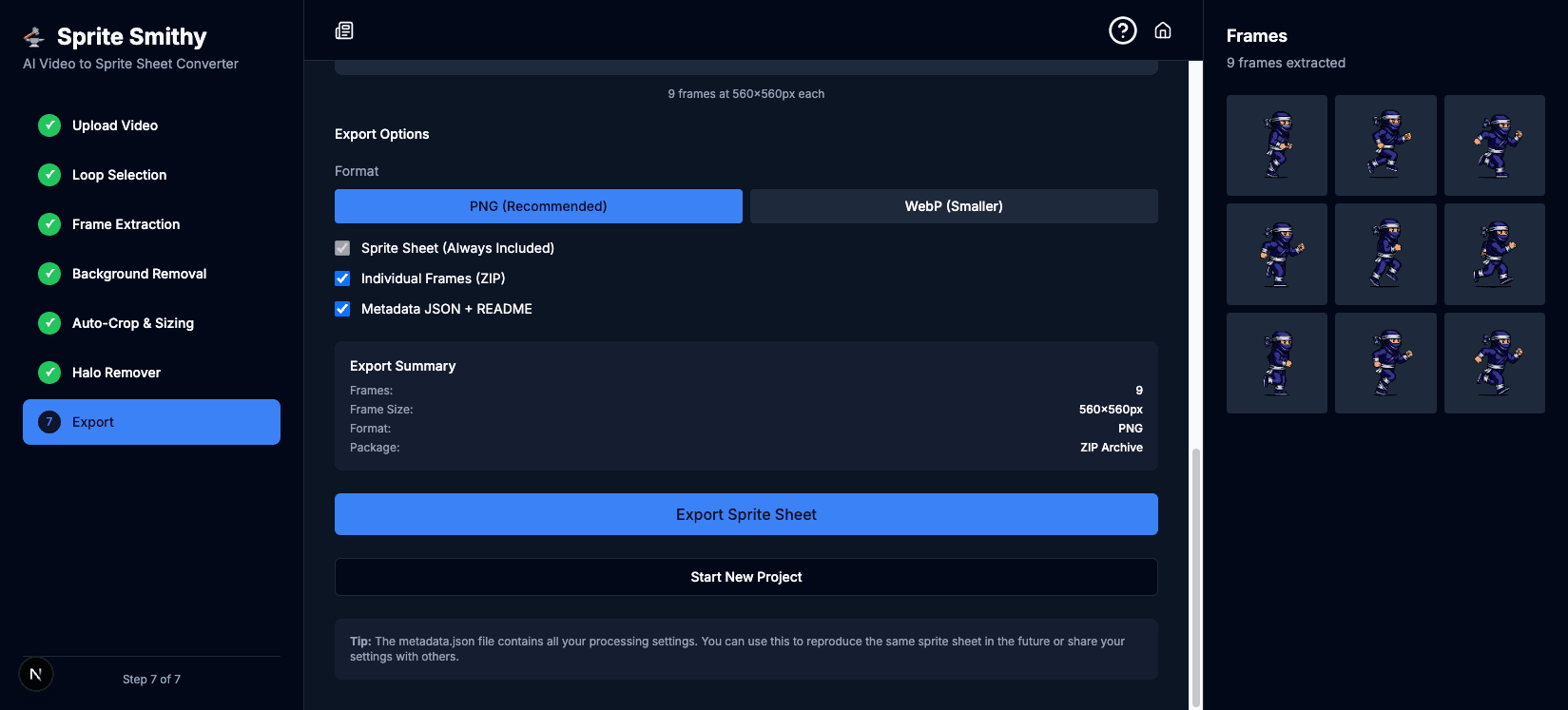
Download your final Batch Export. You'll receive a ZIP file containing your sprite sheet (all frames in one image, laid out in a grid), optional individual PNG frames, and a JSON metadata file that records frame count, dimensions, and processing settings for easy integration into GDevelop, Unity, Godot, or other engines. You can choose PNG (recommended for compatibility) or WebP for smaller file size. The metadata file is useful for scripting import or reproducing the same sprite sheet later.
Download sprite sheet, PNGs, and JSON metadata.
Troubleshooting & Tips
Background removal isn't clean
Contrast is key: For the best results with Chroma Keying, try to generate your AI videos with a high-contrast background (like bright green or blue) that doesn't match any colors on your character. The more uniform and saturated the background, the cleaner the key.
Adjust threshold: If parts of your character are disappearing, lower the threshold. If pieces of the background remain, increase it slightly. Use the live preview to find the sweet spot where the background is gone but the character edges stay intact.
My animation looks "jittery"
Use Auto-Crop: Ensure Auto-Crop & Normalize is active. This tool fixes inconsistencies where the AI might have shifted the character's position slightly between frames by detecting the bounding box per frame and centering consistently.
Check your loop: Go back to the Loop Selection step and ensure your first and last frames transition smoothly into one another. A visible jump at the loop point will look like a stutter in-game.
The edges of my sprite look "fuzzy" or "ghosted"
Halo Removal: AI video generators often leave a soft "halo" around subjects. Use the Halo Remover tool specifically designed to sharpen these edges for game-ready transparency. Start with a low strength (1–2 pixels) and increase only if needed to avoid over-eroding thin details like hair or accessories.
The video won't upload
Check format: Verify your file is MP4, WebM, or MOV. Some screen recorders or phones use other codecs that may not be supported.
Check size: Ensure the file size is under 100MB. For short clips (a few seconds), this is rarely an issue.
Browser support: Since Sprite Smithy processes everything locally in your browser, use a modern version of Chrome, Firefox, or Edge for the best performance. Disable browser extensions that might block or alter file access if uploads fail unexpectedly.
Best Practices
Keep loop lengths short (one to three seconds) for walk cycles, idles, or attacks—most game animations don't need long clips, and shorter loops mean fewer frames to process and smaller exports. Use frame skip in Step 2 if your source is 24fps or higher and you want a lighter sprite sheet; exporting every second frame often still looks smooth for pixel-art style.
When generating AI video, prompt for a single character on a solid background and, if the tool allows, request minimal camera or character movement so the loop lines up cleanly. After export, keep the metadata JSON with your project so you can document or recreate the same settings later. For game engines that expect a fixed grid (e.g. N×M frames), the export summary in Step 7 shows the exact dimensions and frame count to configure your animation.
If you run into a case the tool doesn't handle well—for example multiple characters or a very noisy background—consider pre-processing the video in an editor to isolate one character on a solid color, then run it through Sprite Smithy for the best result.